
KYOBASHI, OSAKA / DROP-IN GUIDE
Drop-in visitors welcome
Book online in 4 steps. Our booking site is in Japanese only, so this page shows you exactly what to tap.
- ¥4,500 per visitOpen gym (90 min) or a coached class. Tax included. No membership fee.
- Open 5:00–21:00Every day except Wednesday (closed).
- 7 min walk from Kyobashi StationClose to Osaka Castle Park. Look for the pink shutter.
- What to bringWorkout clothes and training shoes. Showers and a changing room. Towel rental ¥300.
Book and pay online before you come. There are no walk-ins and no payment at the door.
Start bookingCHOOSE
Choose how you want to train
How booking works (A and B)
- 1Pick a time — an open-gym slot (A) or a class (B), then tap チケットを購入して予約する (Buy a ticket and book).
- 2Check the ticket — チケット購入 1/6 (Buy ticket, 1 of 6)
- 3Fill in your details — 会員情報の入力 2/6 (Your details, 2 of 6). This creates your free account.
- 4Pay and confirm — pay online, then check your booking.
- QROn the day — open the door with your QR code.
Screens below were captured in October 2026. The booking site may change a little.
Open gym
On your own · 90 min · ¥4,500
AStep 1Pick a 90-minute slot
First, check how busy it is
Up to 5 visitors can book each open-gym slot, and members’ classes can run at the same time. Our crowd page shows how many people are booked for each 90-minute slot, so you can pick a quiet time.
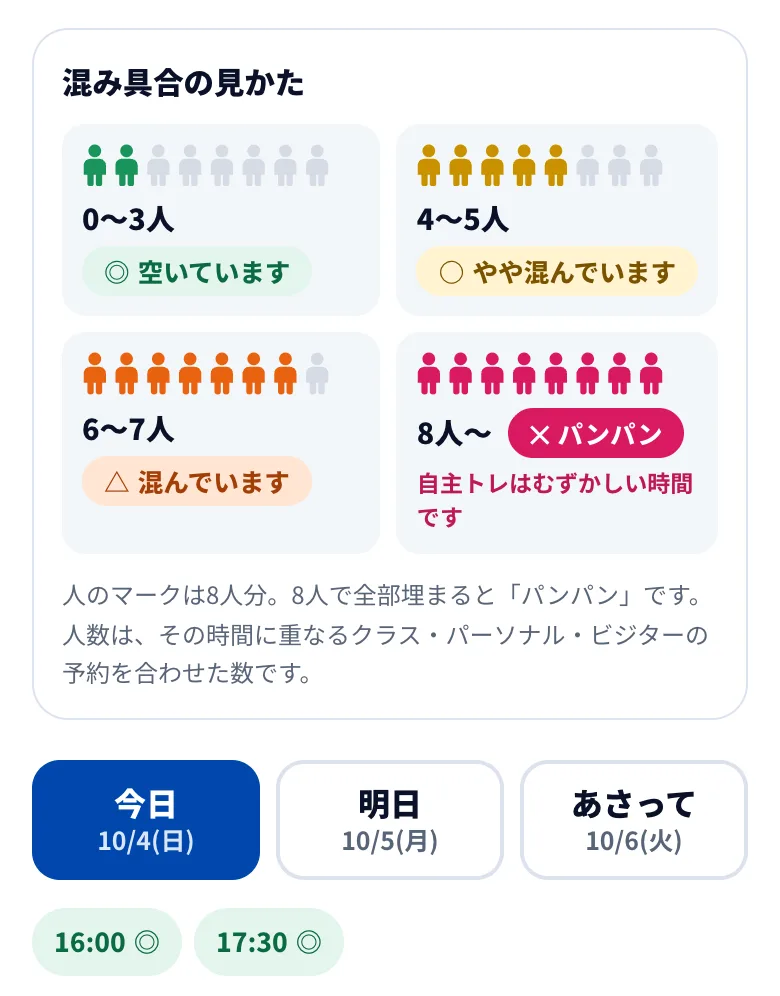
- Mark 1: ◎ 空いています (Quiet) — 0 to 3 people.
- Mark 2: ○ やや混んでいます (A bit busy) — 4 to 5 people.
- Mark 3: △ 混んでいます (Busy) — 6 to 7 people.
- Mark 4: ✕ パンパン (Packed) — 8 or more people. Most equipment will be in use, so training on your own is hard.
- Mark 5: 今日 (Today) / 明日 (Tomorrow) / あさって (Day after tomorrow). Tap to switch the day.
- Mark 6: Each start time with its crowd level. Tap one to jump to that slot.
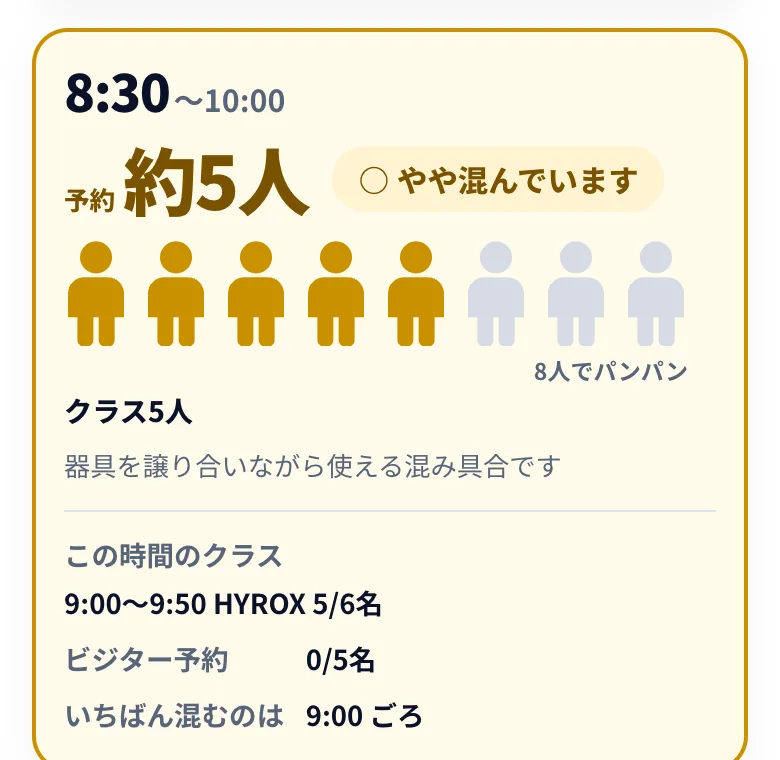
- Mark 1: Slot time (start – end). いま (Now) marks the current slot.
- Mark 2: 予約 約5人 (About 5 people booked)
- Mark 3: Crowd level (see above).
- Mark 4: One figure per person. When all 8 are filled, it’s packed (8人でパンパン (packed at 8)).
- Mark 5: Who is booked: クラス (class), ビジター (visitors), パーソナル (personal training).
- Mark 6: この時間のクラス (Classes at this time), with booked / capacity.
- Mark 7: ビジター予約 0/5名 (Visitor bookings: 0 of 5)
いちばん混むのは 9:00 ごろ (Busiest around 9:00)
- The numbers are bookings only. Members training without a booking are not counted.
- Updated about once an hour, so it can change just before you come.
Then pick a slot on the booking site
All times are Osaka local time (JST, UTC+9), 24-hour clock.
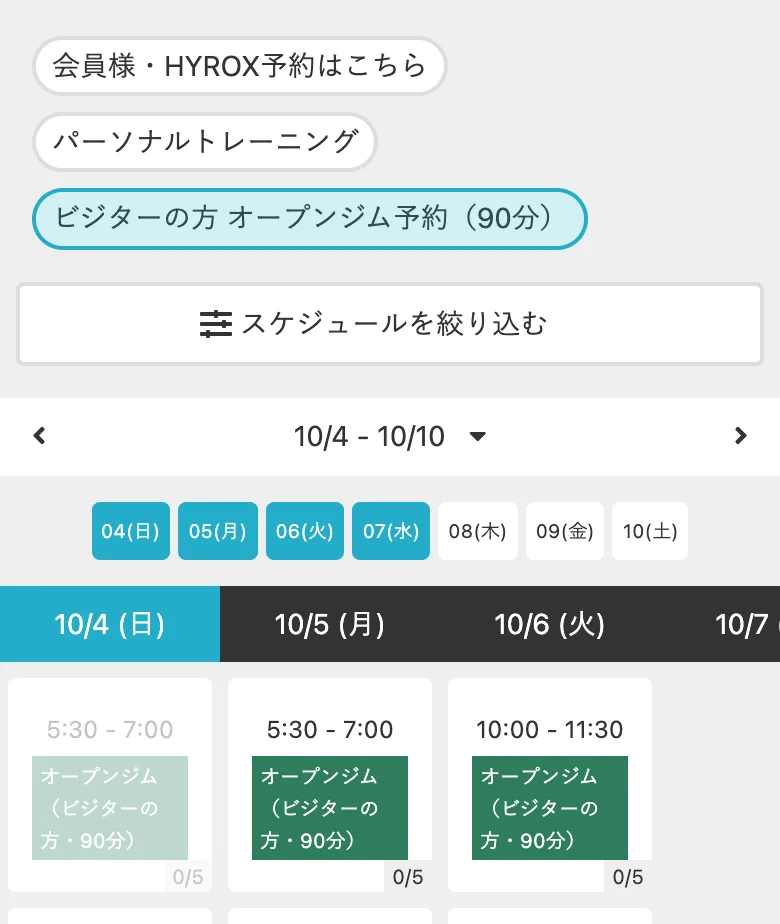
- Mark 1: ビジターの方 オープンジム予約(90分) (Visitor open gym, 90 min) must be selected (light blue). The button below opens it directly.
- Mark 2: The week. Tap ‹ › for the previous or next week.
- Mark 3: Dates: 月 Mon · 火 Tue · 水 Wed · 木 Thu · 金 Fri · 土 Sat · 日 Sun. Tap a date to jump to it.
- Mark 4: A slot you can book: time, オープンジム(ビジターの方・90分) (open gym for visitors) and booked / capacity (0/5). Tap it.
- Mark 5: Greyed out: already started or booking closed.
- On a phone the days sit side by side. Swipe left or right to see more days.
- Slots start at 5:30, 7:00, 8:30, 10:00, 11:30, 13:00, 14:30, 16:00, 17:30 and 19:00. Some are missing when the gym is booked privately. No slots on Wednesdays.
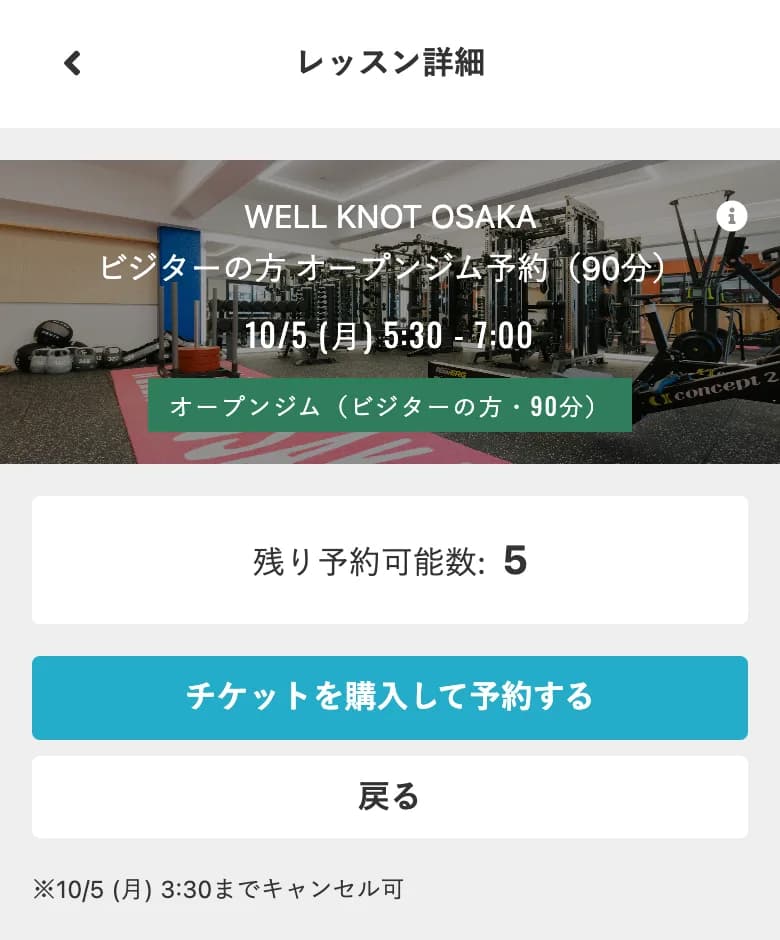
- Mark 1: Date and time. Check it’s the slot you want.
- Mark 2: 残り予約可能数 (Spots left)
- Mark 3: チケットを購入して予約する (Buy a ticket and book) — tap this. You don’t need an account yet; you’ll make one in Step 3.
- Mark 4: ※… までキャンセル可 (Cancel until …) — you can cancel up to 2 hours before the start.
If you see 満員のため予約できません。 (Full) or 受付時間を過ぎたため予約できません。 (Booking closed), go back and pick another slot.
AStep 2Check the ticket
The open-gym ticket is already selected
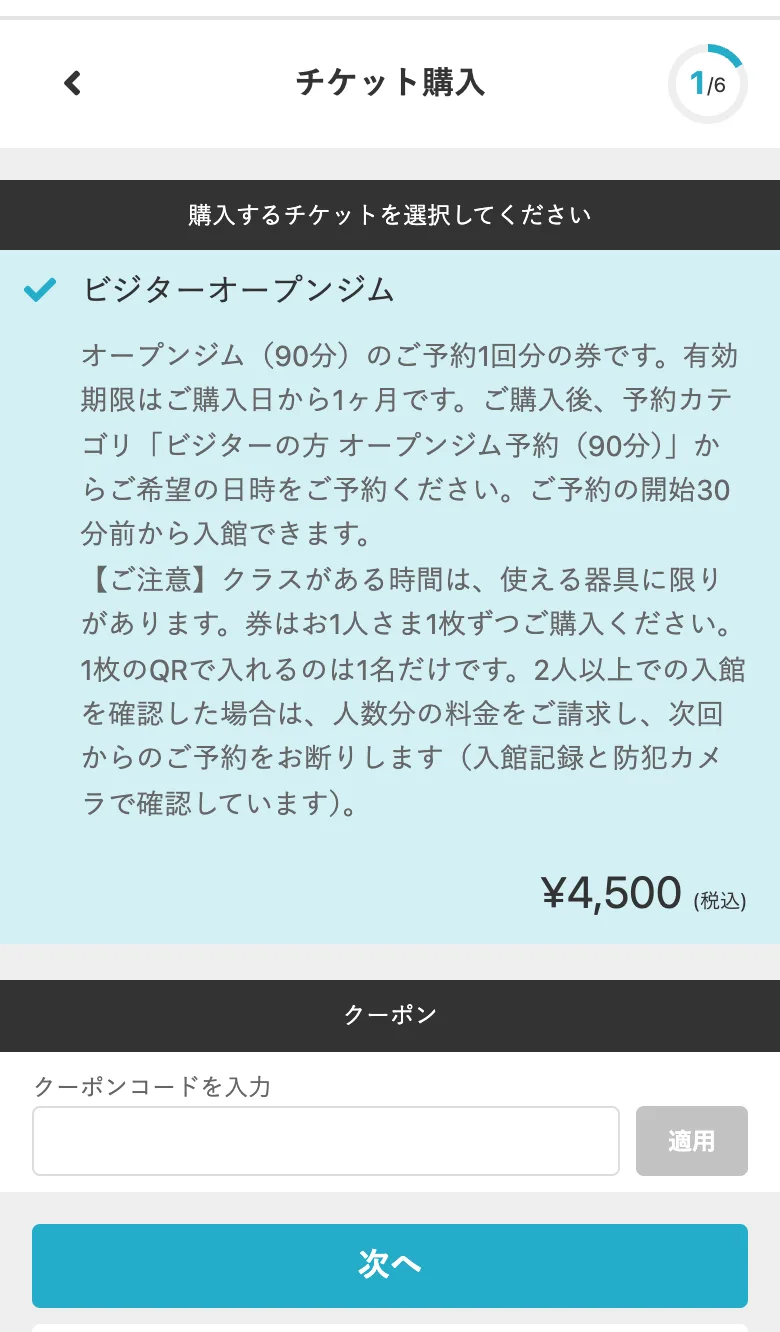
- Mark 1: チケット購入 1/6 (Buy ticket, step 1 of 6)
- Mark 2: ビジターオープンジム (Visitor Open Gym) — already ticked. One 90-minute visit, valid for 1 month from purchase.
- Mark 3: ¥4,500 (税込) (tax included)
- Mark 4: クーポン (Coupon) — leave it empty.
- Mark 5: 次へ (Next)
Coached class
Small group with a coach · ¥4,500 · best for first-timers
BStep 1Pick a class
Find a class on the booking site
All times are Osaka local time (JST, UTC+9), 24-hour clock.
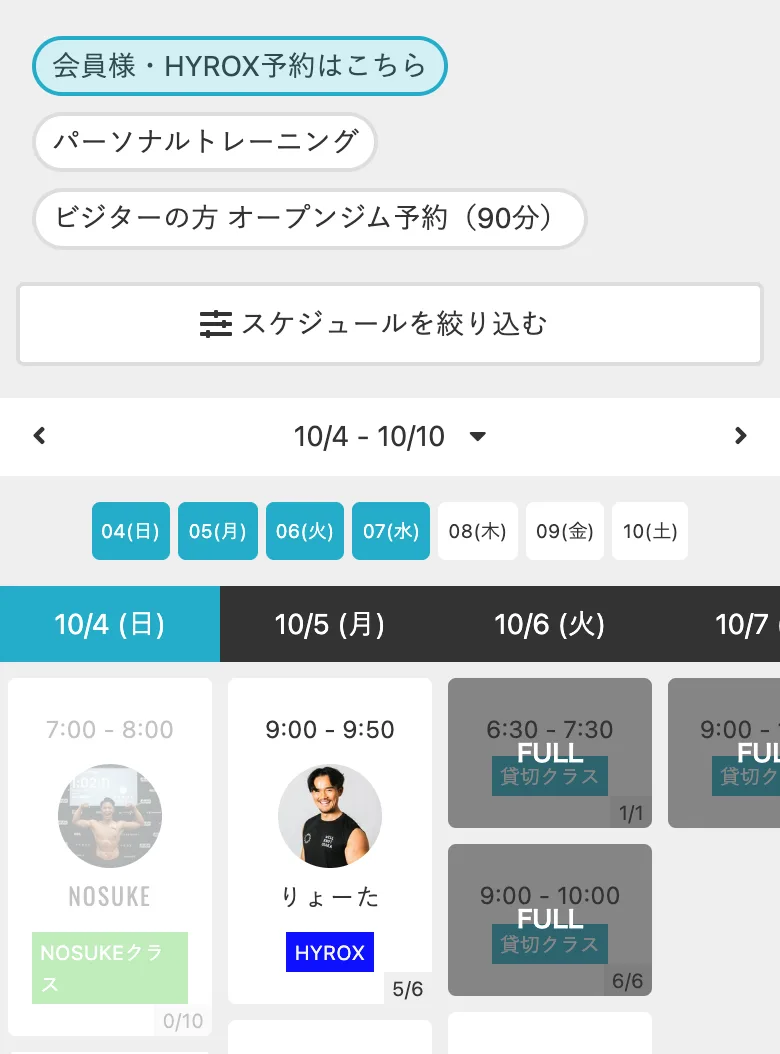
- Mark 1: 会員様・HYROX予約はこちら (Members & HYROX booking) — despite the name, visitors book classes here too.
- Mark 2: パーソナルトレーニング (Personal training) — needs a separate booking and fee.
- Mark 3: Dates: 月 Mon · 火 Tue · 水 Wed · 木 Thu · 金 Fri · 土 Sat · 日 Sun.
- Mark 4: A class: time, coach, class name and booked / capacity (5/6). FULL means full. Tap a class to open it.
- Mark 5: NOSUKEクラス — an advanced class with its own ticket. Not covered by the visitor class ticket.
- Mark 6: 貸切クラス (Private booking) — not open to visitors.
You can book these with the visitor class ticket
- HYROX
- HYROX training: a full-body circuit on HYROX race equipment. Beginners welcome — the coach explains the machines.
- HYROXライト (HYROX Light)
- A lighter version of the HYROX class.
- ボディメイククラス (Body-shaping class)
- Strength training focused on toning and shaping your body.
- ランフォームLAB (Run Form Lab)
- A running-form class with Coach Kita.
Not covered by the visitor class ticket
- NOSUKEクラス
- Advanced, for people with HYROX training experience. It needs its own NOSUKE ticket.
- パーソナルトレーニング (personal training)
- Personal training needs a separate booking and fee.
- 貸切クラス (private booking)
- Not open to visitors.
- HYROX体験クラス (trial class)
- We are no longer accepting new trial bookings.
Ask us first
- HARUクラス, エリート (elite), ランニング (running)
- Ticket rules not confirmed — please message us before booking.
Not sure about any other class? Send us a DM on Instagram.
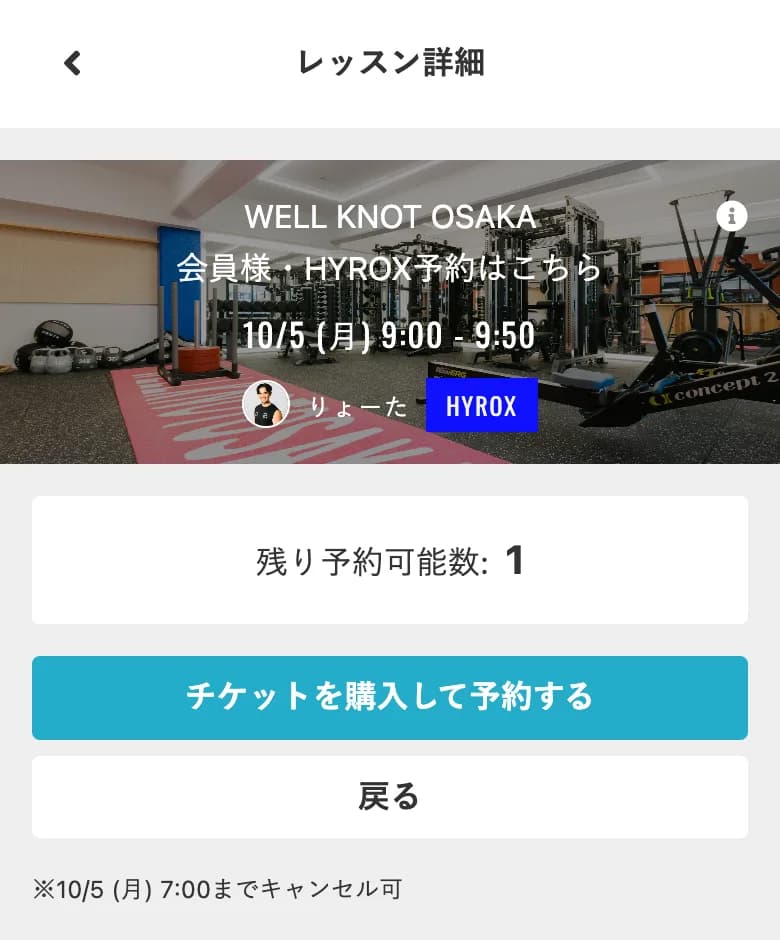
- Mark 1: Date and time of the class.
- Mark 2: 残り予約可能数 (Spots left)
- Mark 3: チケットを購入して予約する (Buy a ticket and book) — tap this. You don’t need an account yet.
- Mark 4: ※… までキャンセル可 (Cancel until …) — up to 2 hours before the start.
The coach’s profile and the class description further down are in Japanese.
BStep 2Check the ticket
The class ticket is already selected
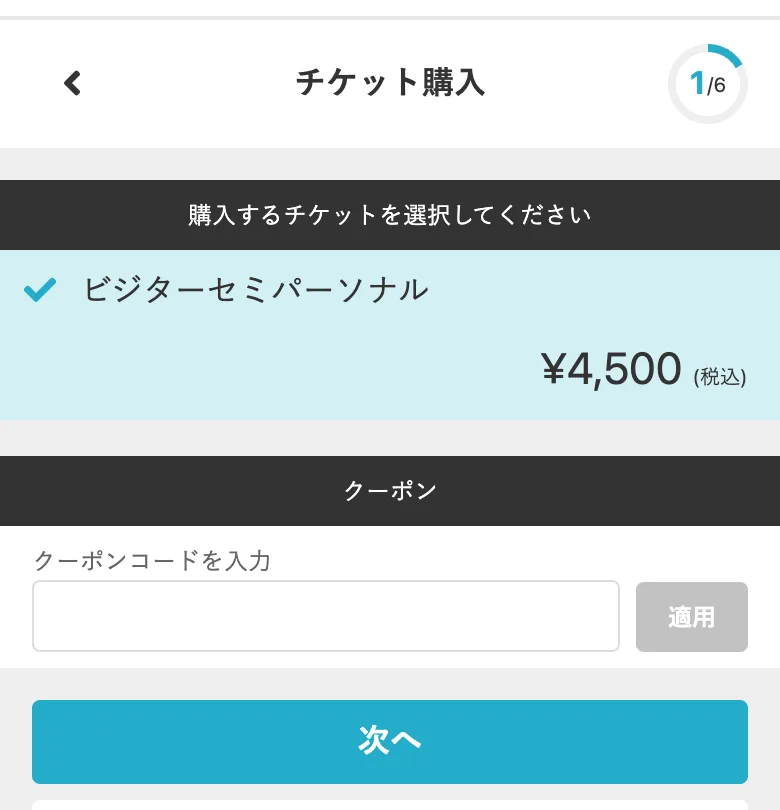
- Mark 1: チケット購入 1/6 (Buy ticket, step 1 of 6)
- Mark 2: ビジターセミパーソナル (Visitor Semi-Personal) — already ticked. If a different ticket shows up here, that class isn’t covered. Go back and pick another class.
- Mark 3: ¥4,500 (税込) (tax included)
- Mark 4: クーポン (Coupon) — leave it empty.
- Mark 5: 次へ (Next)
Step 3A and B
Fill in your details
The same form for open gym and classes. It creates your free account — you’ll log in with this email and password later to show your QR code.
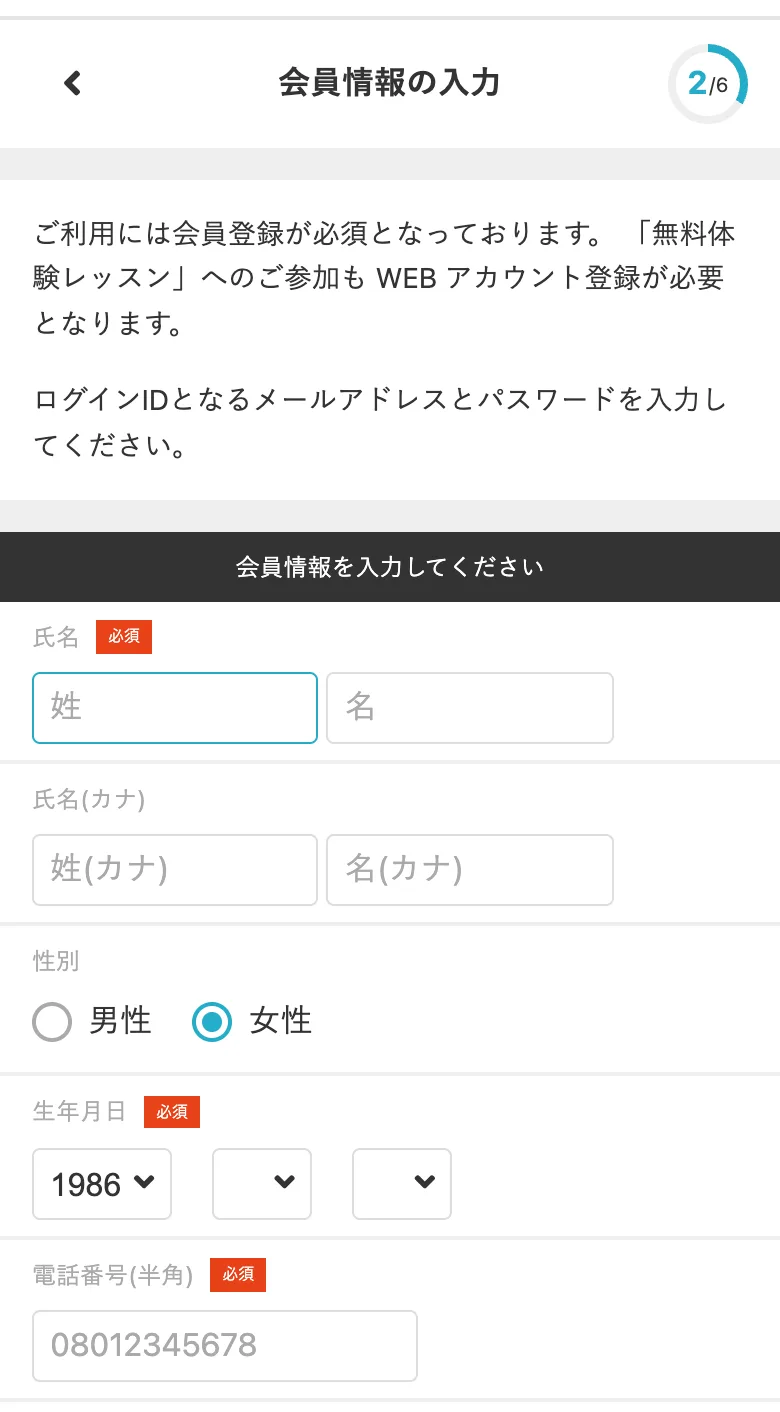
- Mark 1: 会員情報の入力 2/6 (Your details, step 2 of 6)
- Mark 2: 氏名 (Name) — 姓 (last name) first, then 名 (first name). English letters should be fine.
- Mark 3: 氏名(カナ) (Name in katakana) — optional, you can leave it blank. If you fill it in, use katakana only (English letters are rejected with 全角カナで入力してください。 (Please use katakana)). The helper below can make it for you.
- Mark 4: 性別 (Gender) — 男性 (male) / 女性 (female). 女性 (female) is selected by default, so tap 男性 (male) if that’s you.
- Mark 5: 生年月日 (Date of birth) — year / month / day. 1986 is selected by default; make sure the year, month and day match your date of birth.
- Mark 6: 電話番号(半角) (Phone number) — your own number (an international number is fine). Half-width digits, up to 15. If the form rejects it, message us.
Katakana helper
Optional — only if you want to fill in your name in katakana. Type your name in English letters, then copy each result into the matching box on the form.
The automatic reading is only a guide — edit it if you like. Any katakana is accepted; it just helps our staff read your name.
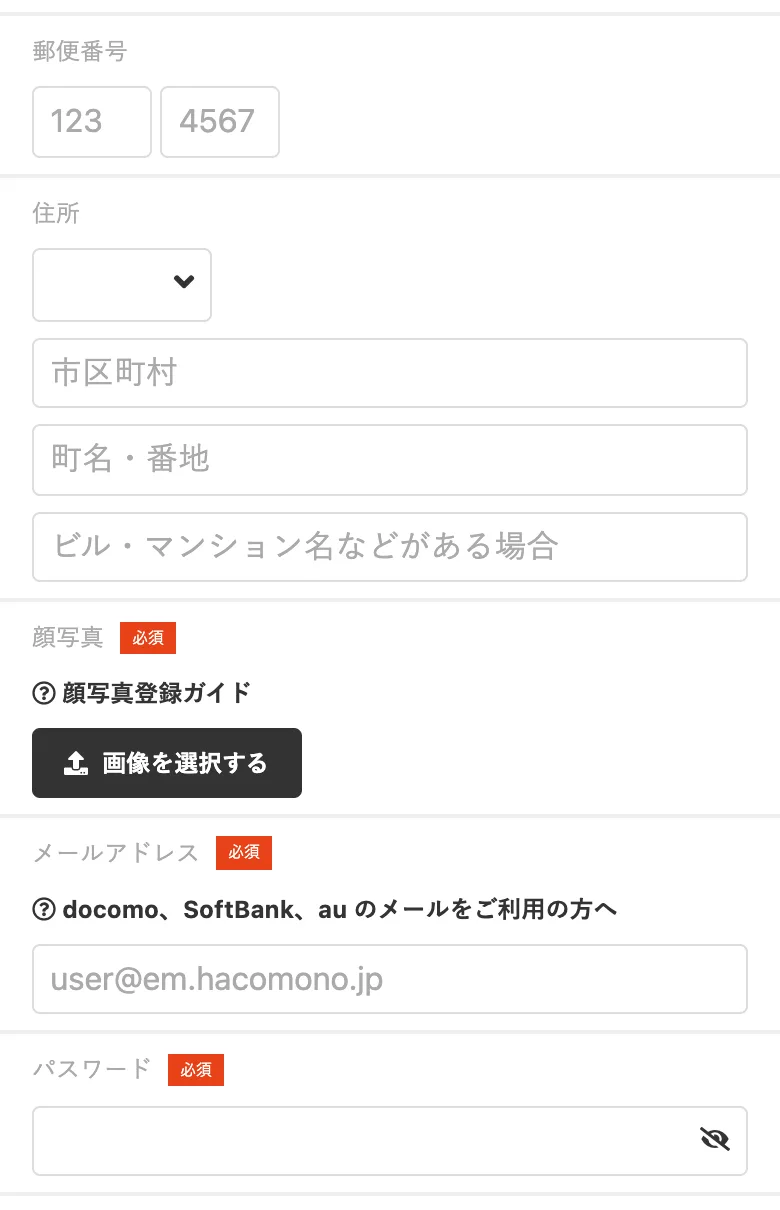
- Mark 7: 郵便番号 (Postal code) — optional. Leave it blank, or enter a Japanese postal code (3 + 4 digits), e.g. your hotel’s.
- Mark 8: 住所 (Address) — optional, you can leave it blank. If you fill it in: prefecture, then 市区町村 (city / ward) and 町名・番地 (street and number) (Japanese addresses only — your hotel’s is fine). The last box, ビル・マンション名などがある場合 (building name, if any), is also optional.
- Mark 9: 顔写真 (Face photo) — required. Tap 画像を選択する (Choose image) and add a clear colour photo of your face (a selfie is fine). If you see この画像を使用 (Use this image), tap it.
- Mark 10: メールアドレス (Email) — this is your login ID.
- Mark 11: パスワード (Password) — at least 6 characters, not the same as your email. Remember it: you need it to show your QR code.
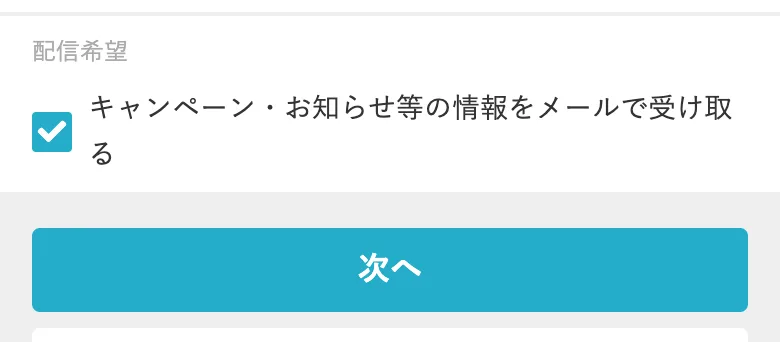
- Mark 12: 配信希望 (Newsletter) — ticked by default. Untick it if you don’t want our emails (in Japanese).
- Mark 13: 次へ (Next)
Visiting from abroad? Tips for the form
- Phone: your own number (an international number is fine). Half-width digits, up to 15. If the form rejects it, send us a DM.
- Katakana, postal code and address: optional — you can leave them blank. If you want to fill in the address, use where you’re staying in Japan, such as your hotel. Its website or Google Maps shows the postal code (〒) and address. Prefecture: 大阪府 (Osaka), 京都府 (Kyoto), 東京都 (Tokyo).
- Photo (required): under 3 MB, in colour, with your face filling at least a third of the picture and a plain background. If a large photo is rejected, take a screenshot of it and upload that instead.
- Stuck on any field? Send us a DM on Instagram with a screenshot. Hide personal and payment details before sending.
Step 4A and B
Pay and confirm
After 次へ (Next), follow the remaining screens. The titles below come from the booking system.
These screens are not yet verified — they may differ. If you get stuck, send us a DM.
- 3/6
アンケートに回答 (Questionnaire)
May not appear. If it does, answer what you can and tap 次へ (Next).
- 4/6
支払方法の選択 (Payment method)
Choose how to pay. Card fields may be labelled カード番号 (card number), 有効期限 (expiry date) and セキュリティコード (security code). If your card company shows a verification screen, follow its instructions.
- 5/6
予約内容の確認 (Confirm booking)
Check the date, time and ticket. If you see 利用規約に同意する (I agree to the terms), tick it. The button at the bottom may say 内容を確認し予約する (Confirm and book) or 予約する (Book).
- 6/6
Last screen
The booking should now be complete.
Before you close the booking site
Check that your booking appears with the correct date and time. Your bookings should be under 予定管理 (Schedule) in the bottom menu. If you can’t find it, send us a DM.
On the day
Enter with your QR code
- When the door opensFrom 30 minutes before your booking starts until 10 minutes after it ends (open gym and classes).
- Check your QR code before you comeLog in to the booking site. The QR code should be under マイページ (My page) in the bottom menu → 会員証 (Member card) (not yet verified). If it doesn’t show, send us a DM before your visit.
- Staff aren’t always thereEarly mornings and some other times have no staff. Make sure you can log in on your phone before you arrive.
- One QR code = one personEach person enters with their own code.
WELL KNOT OSAKA
Taiyo Building, south side 1F, 2-7-23 Katamachi, Miyakojima-ku, Osaka 534-0025
〒534-0025 大阪府大阪市都島区片町2丁目7-23 たいようビル 南側1階
- 7 min walk from Kyobashi Station (JR / Keihan / Osaka Metro)
- 5 min from Osakajo-kitazume Station (JR Tozai Line)
- 8 min from Osaka Business Park Station (Osaka Metro)
Look for the pink shutter.
Coming back?
Log in first
Tap the blue ログイン (Log in) button at the top right of the booking site. Then book the same way: pick a slot or class and follow the screens.
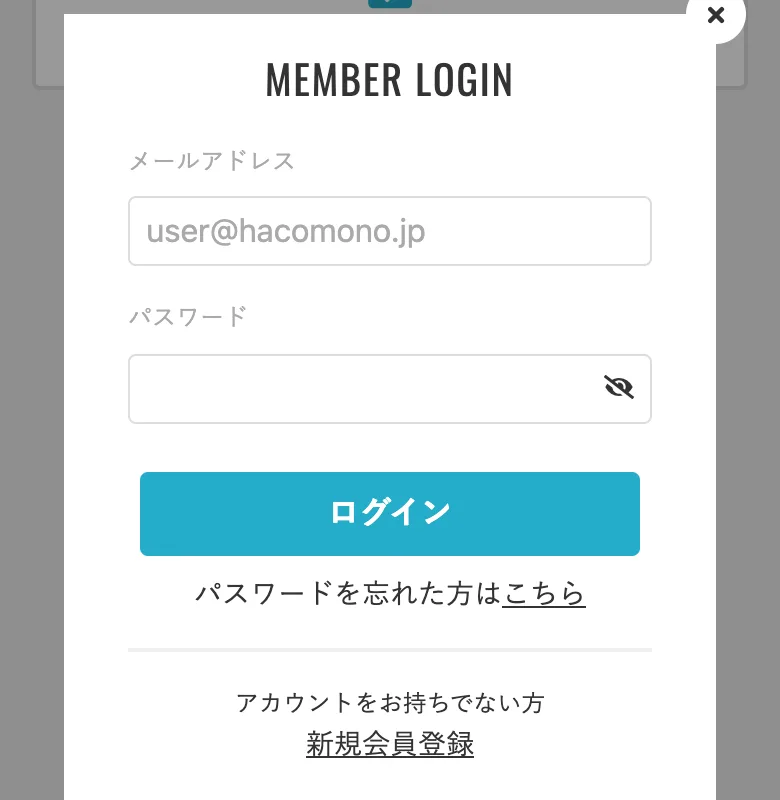
- Mark 1: メールアドレス (Email)
- Mark 2: パスワード (Password)
- Mark 3: ログイン (Log in)
- Mark 4: パスワードを忘れた方はこちら (Forgot your password?)
HOUSE RULES
Please read before you come
- One ticket per person. One QR code lets in one person. If more people come in on one code, we will charge each extra person and may refuse future bookings.
- Book and pay before you come. If you enter without a ticket, we will charge the visitor fee.
- Classes may be running. You can train during class times, but some equipment will be in use.
- Private bookings. When the gym is booked privately (貸切クラス), visitors can’t use it.
- Entry times. Your QR code opens the door from 30 minutes before your booking starts until 10 minutes after it ends.
- Closed on Wednesdays.
FAQ
Questions
Do I need a membership?
No. You create a free account while you book, and pay ¥4,500 per visit. There is no joining fee and no monthly fee.
Can I just walk in?
No. Please book and pay on the booking site before you come. Staff are not always at the gym, and the door opens only with the QR code of a booked visitor.
Is the booking site in English?
No, it is in Japanese only. This guide shows the Japanese words to look for on each screen. You can also use your browser’s translate feature, but then the buttons will look different from this guide.
I’ve never done HYROX. Which option should I choose?
Choose a coached class (option B). The coach explains the equipment, and the HYROX class is open to beginners.
Can I book for a friend?
Each person needs their own account, ticket and booking, so please book separately. One QR code lets in one person.
How late can I book?
A slot can’t be booked once booking for it has closed (it turns grey). To be safe, book at least an hour before the start.
Can I cancel?
Yes, up to 2 hours before the start. The exact time is shown on the slot page as ※… までキャンセル可 (cancel until …). Your bookings should be under 予定管理 (Schedule) in the bottom menu. If you’d like to know whether a cancelled booking can be refunded or its ticket reused, please send us a DM on Instagram.
How do I pay?
Online, while you book. There is no payment at the gym. If your card doesn’t go through, try another card or send us a DM.
I don’t have a Japanese phone number or address.
No problem. Use your own phone number (an international number is fine). Your name in katakana, postal code and address are optional — leave them blank, or use your hotel’s address if you like. A face photo is required. See the tips in Step 3. If the form won’t accept your details, send us a DM on Instagram.
Are there showers? Do I need a towel?
Yes, there are showers and a changing room. Bring your own towel or rent one for ¥300.
Need help? Message us on Instagram
Send a DM to @wellknotosaka.kyobashi in English. Nobu, the owner, reads and replies to messages. A screenshot of the screen you’re stuck on helps — hide personal and payment details before sending.